സമയാസമയങ്ങളിൽ നിങ്ങൾ ഒരു വീഡിയോ ഫയലിൽ നിന്ന് ശബ്ദം എക്സ്ട്രാക്റ്റുചെയ്യേണ്ടതുണ്ട്. ഭാഗ്യവശാൽ, ffmpeg പ്രോഗ്രാം ഉപയോഗിച്ച്, ഏത് ആഡിയോ/വീഡിയോ ഫയലിൽ നിന്നും ശബ്ദം എടുത്ത് ഒരു പ്രത്യേക ഫയലായി സംഭരിക്കുന്നത് വളരെ ലളിതമാണ്. വീഡിയോയുടെയും ശബ്ദത്തിന്റെയും ഒന്നിലധികം ഫോർമാറ്റുകൾക്കിടയിൽ മുന്നോട്ടും പിന്നോട്ടും പരിവർത്തനം ചെയ്യാൻ ffmpeg യൂട്ടിലിറ്റിക്ക് കഴിയും.
sudo apt-get update
sudo apt-get install ffmpeg
ffmpeg -i
test.avi audio.mp3
To force ffmpeg to create the mp3 file at the 256 kbps bitrate, add the -ab option to the command:
ffmpeg -i
test.avi -ab 256k
audio.mp3
യൂട്യൂബില് നിന്ന് വീഡിയോയും ഓഡിയോയും ഡൗണ്ലോഡ് ചെയ്യാന്
വിവിധ മാര്ഗങ്ങള് പരിചയപ്പെട്ടിട്ടുണ്ട്.ഒന്നുകൂടി ഇതാ..
പലര്ക്കും അറിയുന്നതാകാം. അറിയാത്തവര്ക്കായ്..
www.youtube ന് ശേഷം pp എന്ന് ടൈപ്പ് ചെയ്ത് എന്റര് അമര്ത്തുക.
അപ്പോള് ഓഡിയോയും വീഡിയോയും ഡൗണ്ലോഡ് ചെയ്യാനുള്ള ഓപ്ഷന് വരുന്നതാണ്.
https://www.youtubeconverter.io/convert
Search thousands of snaps used by millions of people across 41 Linux distributions from https://snapcraft.io/store
Open a terminal and do the command lspci. You will see all the PCI devices of your system. If you have the d723 device, you can see it at the bottom
lspci | grep d723
Prerequisite
You should install the corresponding header of your kernel :
sudo apt-get install linux-headers-`uname -r`
Next, install the packages necessary for building :
sudo apt-get install git build-essential dkms
To simplify everything, run the following commands one by one :
git clone -b extended --single-branch https://github.com/lwfinger/rtlwifi_new.git
sudo dkms add rtlwifi_newsudo dkms install rtlwifi-new/0.6
ഉബുണ്ടു ഇൻസ്റ്റാൾ ചെയ്യുമ്പോൾ grub installation പൂർത്തിയാവാതെ OS ഇൻസ്റ്റലേഷൻ പരാജയപ്പെടുന്ന കമ്പ്യൂട്ടറുകളിൽ ഉബുണ്ടു ഇൻസ്റ്റാൾ ചെയ്യുന്ന വിധം.
ഇതിൽ ആദ്യം ഗ്രബ് ബൂട്ട് ലോഡർ ഇല്ലാതെ OS ഇൻസ്റ്റാൾ ചെയ്യുകയും അതിനു ശേഷം ഗ്രബ് Manually ഇൻസ്റ്റാൾ ചെയ്യുകയുമാണ് വേണ്ടത്. അതിനായിTry Ubuntu സെലക്ട് ചെയ്ത് Live സെഷനിൽ ബൂട്ട് ചെയ്യുക.
ഗ്രബ് ഇല്ലാതെ OS ഇൻസ്റ്റാൾ ചെയ്യുന്നതിനായി ഒരു ടെർമിനൽ തുറന്ന് sudo ubiquity -b എന്ന കമാന്റ് റൺ ചെയ്യുക
1 മുതൽ 12 വരെ എല്ലാ ക്ലാസ്സുകളുടെയും പാഠപുസ്തകങ്ങൾ സമഗ്രയിൽ ലഭ്യമാണ്. ലിങ്ക്
ഇവിടെ ക്ലിക് ചെയ്യുക.
Open terminal either via Ctrl+Alt+T keyboard shortcut or from application menu. When it opens, run command to add the PPA:
1. sudo add-apt-repository ppa:inkscape.dev/stable
2. sudo apt-get update
3. sudo apt-get install inkscape
To remove Inkscape, either use Synaptic package manager or run command in terminal:
4. sudo apt-get remove --autoremove inkscape
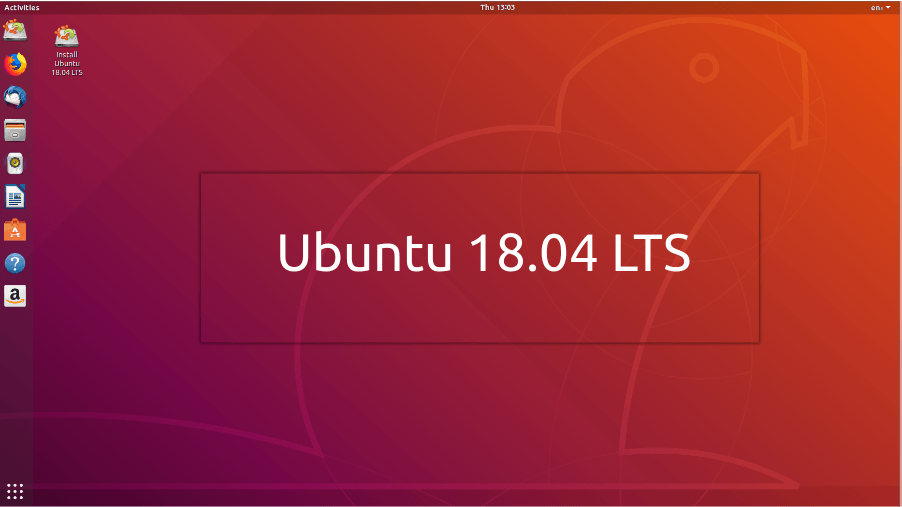
IT@School Ubuntu 18.04 ISO file
Download
Additional Resources for IT@School Ubuntu 18.04
Download
KITE Ubuntu Base Version iso (2.8 GB)
Download
KITE Software Packages (2.8 GB)
Download
ഐ.ടി@സ്കൂൾ ഗ്നു/ലിനക്സ് 18.04 ല് ചില്ലക്ഷരങ്ങളുടെ ഇൻപുട്ട് രീതിയിൽ പ്രകടമായ വ്യത്യാസം വന്നിട്ടുണ്ടെന്നത് അറിയാമല്ലോ. അഞ്ച് വർഷം മുൻപ് തന്നെ ഈ കീബോർഡ് നിലവിൽ വന്നിട്ടുണ്ടെങ്കിലും പാഠപുസ്തക പരിഷ്ക്കരണത്തോടൊപ്പം മാത്രം പുതിയ മാറ്റങ്ങൾ ഓപ്പറേറ്റിങ് സിസ്റ്റത്തിൽ ഉള്പ്പെടുത്താന് നമുക്ക് സാധിക്കുകയുള്ളൂ എന്നതിനാലാണ് ഈ മാറ്റം ഉൾപ്പെടുത്താൻ നാം വൈകിയത്. മലയാളം കമ്പ്യൂട്ടിങ് രംഗത്ത് പഴയതെങ്കിലും വളരെ പ്രധാനമായ ഈ മാറ്റത്തെക്കുറിച്ച് ചില കാര്യങ്ങൾ സൂചിപ്പിക്കുകയാണ് ഇവിടെ. ചിലർക്കെങ്കിലും ഇത് പുതിയ അറിവുമായിരിക്കാം.